Results appear as you type. Use the arrow keys to move and Enter to open. Press the slash key to come back here.
How to print barcode labels for products
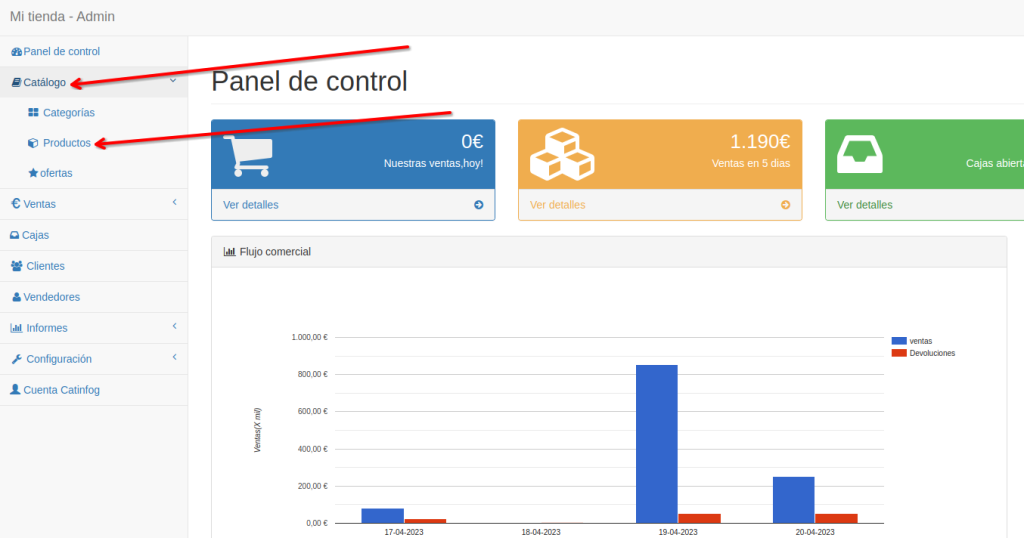
Go to the dashboard, then Catalogue, then Products.
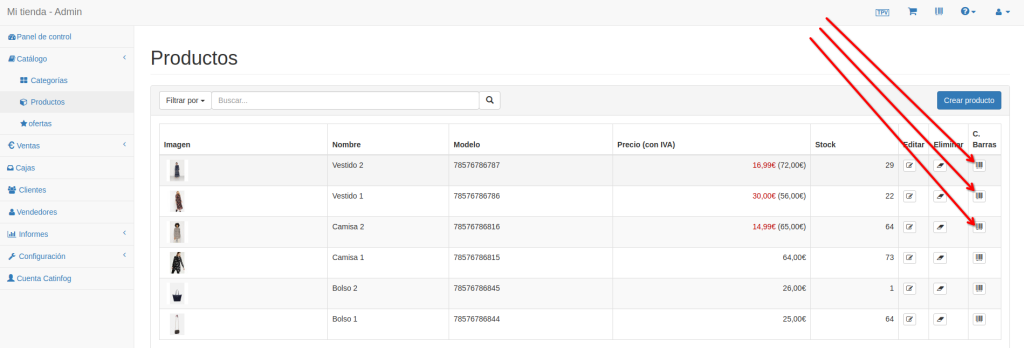
Click the barcode icon on whichever products you want. Each click generates another barcode label.
To see the labels, click the barcode icon in the top menu bar.
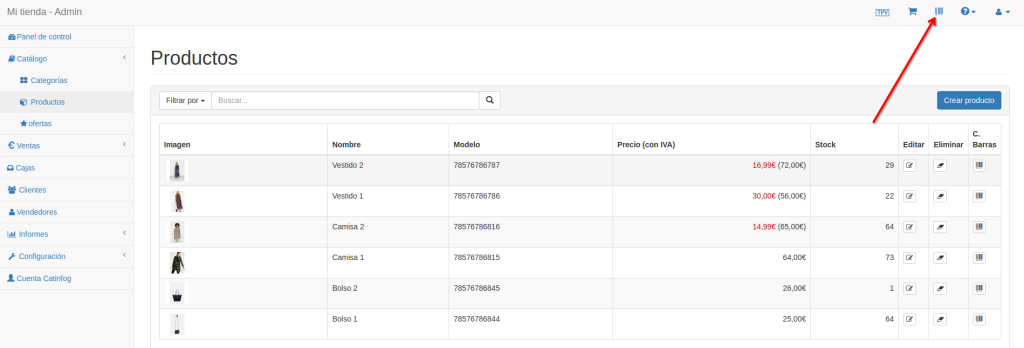
Here you can see the labels you’ve generated. Bear in mind that only 40 labels fit on each print run. You can go back to the products to add more if you want.
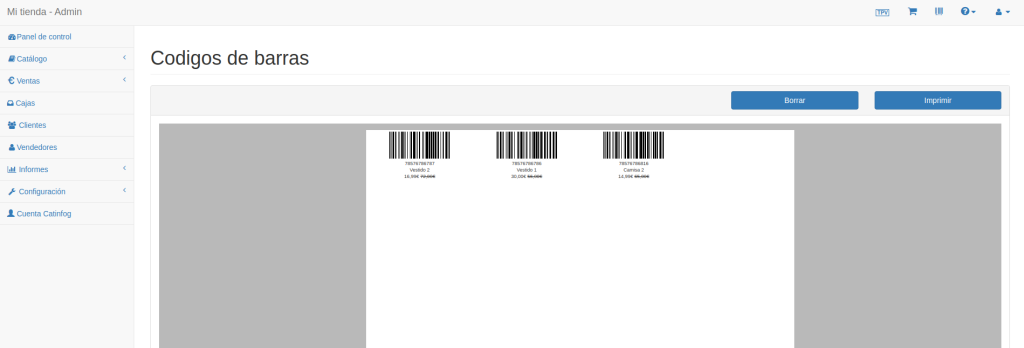
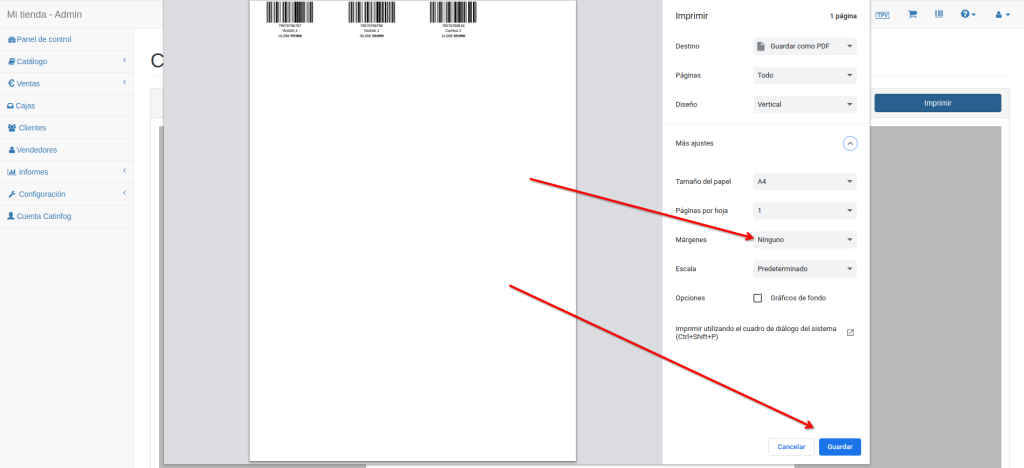
Once you’ve generated the labels you need, click print.
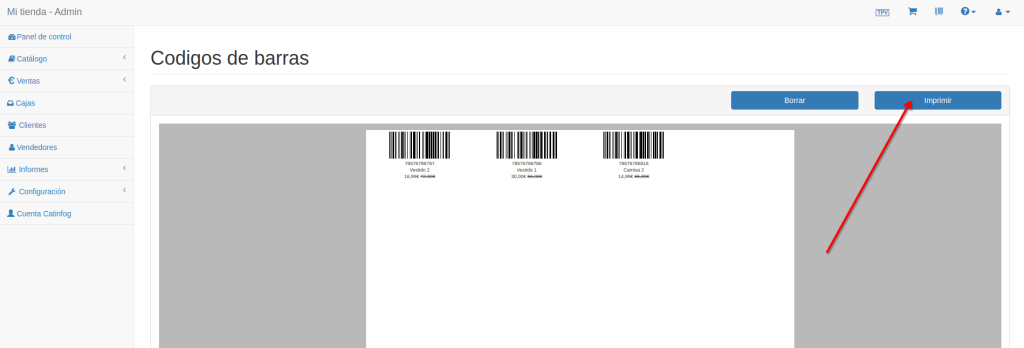
A print window appears. Set Margins to None. Then either save as a PDF or print to your A4 printer with the Apli labels loaded.