Results appear as you type. Use the arrow keys to move and Enter to open. Press the slash key to come back here.
How to set up your bank’s payment gateway with Redsys
Redsys is the payment gateway that nearly every Spanish bank gives its customers for taking card payments in their online shops.
Here you’ll learn how to apply to your bank for a payment gateway and how to negotiate the terms, what Redsys does better and worse than gateways like Stripe or PayPal, and of course how to set the gateway up from scratch with the details your bank sends you.
Stage 1: Ask your bank for the gateway
As things stand, applying for a payment gateway from a Spanish bank means going into one of their branches in person. So there’s nothing for it but to make the trip.
Spanish banks that use Redsys as their payment gateway
- Abanca Corporación Bancaria
- Banca March
- Banca Pueyo
- Banco Alcalá
- Banco Caixa Geral
- Banco Caminos
- Banco Ceiss
- Banco Cooperativo
- Banco De Credito Social Cooperativo
- Banco Finantia Sofinloc
- Banco Mediolanum
- Banco Popular
- Banco Sabadell
- Banco Santander
- Bancofar
- Bancon Santander
- Bankia
- Bankinter
- Bankoa
- Barclays Bank Plc
- Bbva
- Caixa Popular
- Caixa Popular De Valencia
- Caixa Rural De L’alcudia
- Caixa Rural Galega
- Caixa Rural La Vall
- Comercia Global Payments
- Caja Colegio Ingenieros Catalunya
- Caja Cooperativa De Arquitectos
- Caja De Credito Cooperativo
- Caja España
- Caja Rural Castilla La Mancha
- Caja Rural Central
- Caja Rural D’ Algemesi
- Caja Rural De Albacete, Ciudad Real Y Cuenca
- Caja Rural De Almendralejo
- Caja Rural De Aragon
- Caja Rural De Burgos
- Caja Rural De Burgos, Fuentepelayo, Segovia Y Castelldans
- Caja Rural De Ciudad Real
- Caja Rural De Extremadura
- Caja Rural De Gijon
- Caja Rural De Guissona
- Caja Rural De Jaen
- Caja Rural De Lugo
- Caja Rural De Navarra
- Caja Rural De Salamanca
- Caja Rural De Teruel
- Caja Rural De Utrera
- Caja Rural De Zamora
- Caja Rural Del Sur
- Caja Rural Nuestra Señora Del Rosario
- Caja Rural Provincial De Asturias
- Caja Rural Provincial De Granada
- Caja Rural Provincial De Soria
- Caja Rural S. Isidro De Vall De Uxo
- Caja Rural San Jose De Almassora
- Caja Rural Santa Cruz De Tenerife
- Cajamar
- Cajarural De Casas
- Cajasiete
- Cajasur
- Catalunya Caixa
- Deutsche Bank
- Globalcaja
- Iberiacards
- Ing Direct
- Kutxabank
- Laboral Kutxa
- Novo Banco
- Targobank
- Triodos Bank
- Uno-E
- Unoe-Bank
What you need to apply for a payment gateway
Every bank wants some assurances before granting you a payment gateway, but any ordinary trader clears this hurdle easily by meeting the following:
- A bank account with that bank.
- A company registration number. They don’t grant payment gateways to private individuals.
- An online shop that’s ready for visitors. You also need your privacy policy and terms and conditions in place (with Catinfog they come already written).
Negotiating fees and charges
Understand that if you’re not going to be turning over a great deal, you aren’t especially interesting to them right now. So the more products you hold with the bank, and the longer you’ve been a customer, the better the terms you’ll be able to negotiate.
Here are the situations that come up most often when negotiating:
- Most banks will start by offering you 0.8% commission on each sale. Worth knowing: at the slightest push they’ll come down to 0.4%.
- Some banks, La Caixa among them, ask for €100 to set the gateway up. If they do, tell them the other banks aren’t charging you for it. Threaten to walk, even. More often than not they back down and drop the fee.
Stage 2: Setting up the Redsys gateway step by step
Setting up Redsys is straightforward, but it isn’t an afternoon’s work. There are things you have to do and then wait for Redsys support to come back to you. These are the steps:
Step 1: Your bank approves the application
Once you’ve applied for the gateway, the bank carries out a short risk assessment, part of which involves visiting your online shop. The point is for both of you to be confident that there’s nothing wrong with your software when it comes to taking payments.
You’ll know you’ve been accepted because they email you with enough detail to make two test purchases.
Step 2: Set the gateway up in test mode
The email they’ve sent you contains four important pieces of information:
- Merchant name.
- Your FUC number, or merchant number.
- Secret encryption key.
- Terminal.
You need to copy these details and paste them into the fields in your Catinfog dashboard.
To do that, go to Settings, then Online shop, then the Payment methods tab. Scroll down to the Redsys section, where you’ll find the four fields for the details from the email. You also need to change the operating mode to Sis-t, and the status from Inactive to Active.
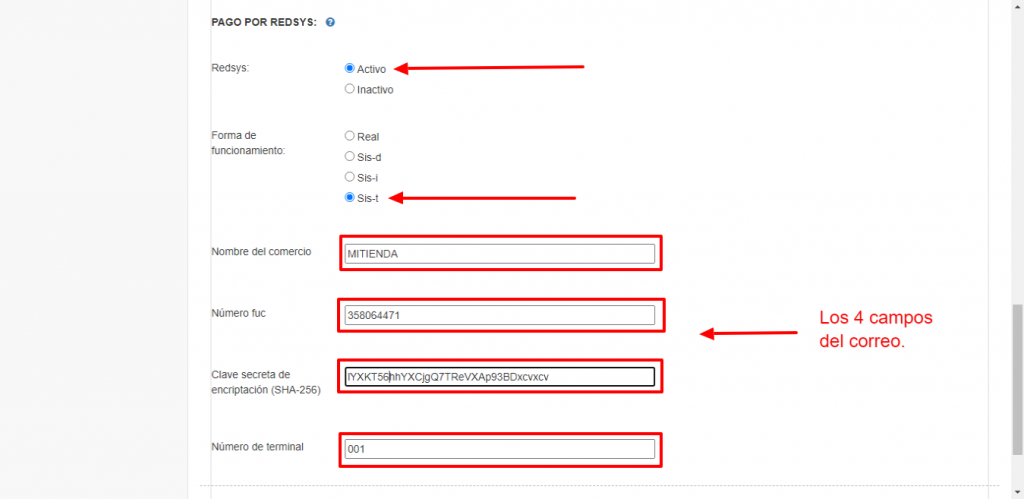
Finally, click Save.
Step 3: Make two test purchases
Now you have to prove everything works, and for that you need to make two dummy purchases: one that succeeds and one that fails.
For this, I’d suggest creating a product that costs €1.
Go to your online shop, add the product to the basket and go to pay. When it asks for the payment method, choose “Card”.
When you complete the order, the Redsys payment gateway appears.
Enter the following card details:
Test card for a successful transaction
Número de tarjeta 4548812049400004
Caducidad 12/20
Código CVV2 123
Código CIP 123456
The purchase should succeed.
Now make another purchase, but this time enter these card details:
Test card for a declined transaction
Número de tarjeta 1111111111111117
Caducidad 12/20
Código CVV2 (No Requerido)
This one should fail.
Step 4: Ask to go live
You’ve now made the two test purchases Redsys asked for in their email. Reply to them by email with the following:
“Hello, I’m customer number (write your customer number here). I’ve made the test purchases and everything went through correctly. I’d like to request going live. Thank you.”
They’ll reply with an email giving you your username and a link to sign in.
Follow the link, enter your username and click “I’ve forgotten my password”. It will ask for your username again, and then another email arrives with a password and a link.
Follow that link, where you’ll be asked for the password they emailed you and then to type a new password twice.
At last you’re inside the real Redsys panel.
Step 5: The live encryption key
This is the last step. Now that you’re inside the Redsys panel, look at the menu on the left and go into the Merchant section. Click “View signature key”. It will ask for your password; enter it. You can now see the “SHA-256 merchant key”. Copy it.
Go to your Catinfog dashboard, then Settings, Online shop and Payment methods. In the Redsys section, change the operating mode to “Live” and replace the secret encryption key with the one you copied from the Redsys panel.
And that’s it — you can now take card payments in your online shop.