Results appear as you type. Use the arrow keys to move and Enter to open. Press the slash key to come back here.
How to create product variants such as sizes and colours
If you sell the same garment in several sizes or colours, you don’t need a separate product for each: they’re added as variants of the product you already have, each with its own stock and its own price.
To add variants such as sizes and colours to a product, you first have to have created the product itself. Then follow these steps.creado el producto
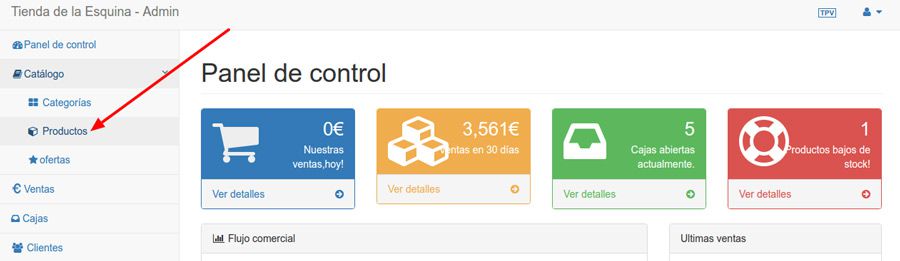
- Go into the dashboard and click Catalogue, then Products.
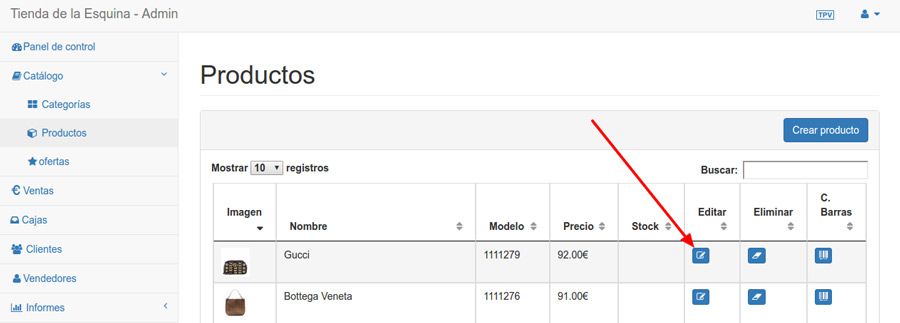
- Click the edit button on the product you want to add variants to.
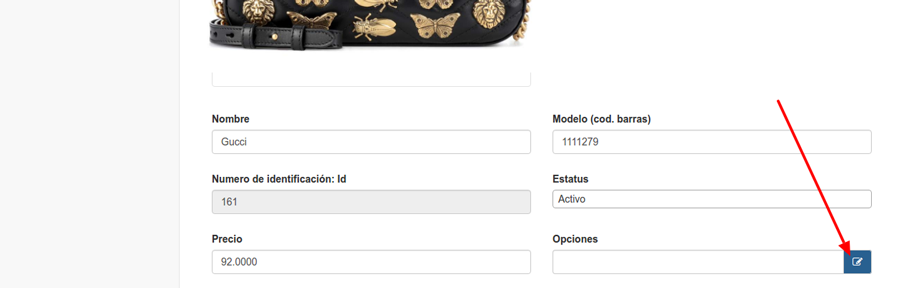
- Scroll down to the Options field and click the blue button.
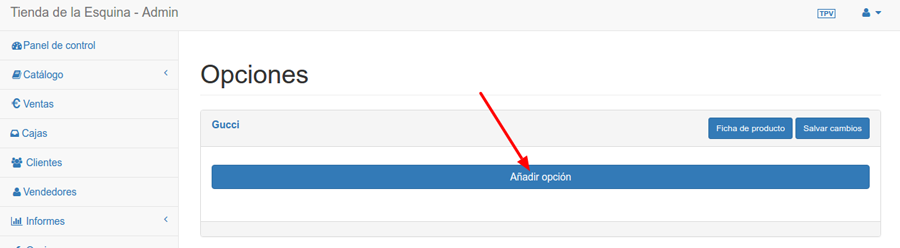
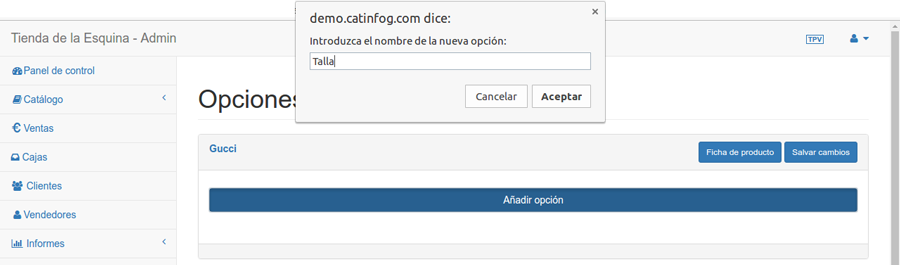
- Click the Add option button.
- A dialogue opens where you type the name of the variant type. “Size”, for example.
- Now you can enter the sizes you need. For each one you fill in:
- Nombre. Por ejemplo, XL.
- Stock. How many units you have of that particular size.
- Price. Only if this variant costs more or less than the base product, and what goes here is the difference, not the final price. If the product is €20 and this variant makes it €2 more, write 2.
- Signo. Indica si esa cantidad suma o resta. Si no has puesto precio, déjalo como está.
- To add more sizes of the same kind, press the button. And if you want another kind of variant — colour, say — click Add option again.

- To finish, click Save changes at the top.
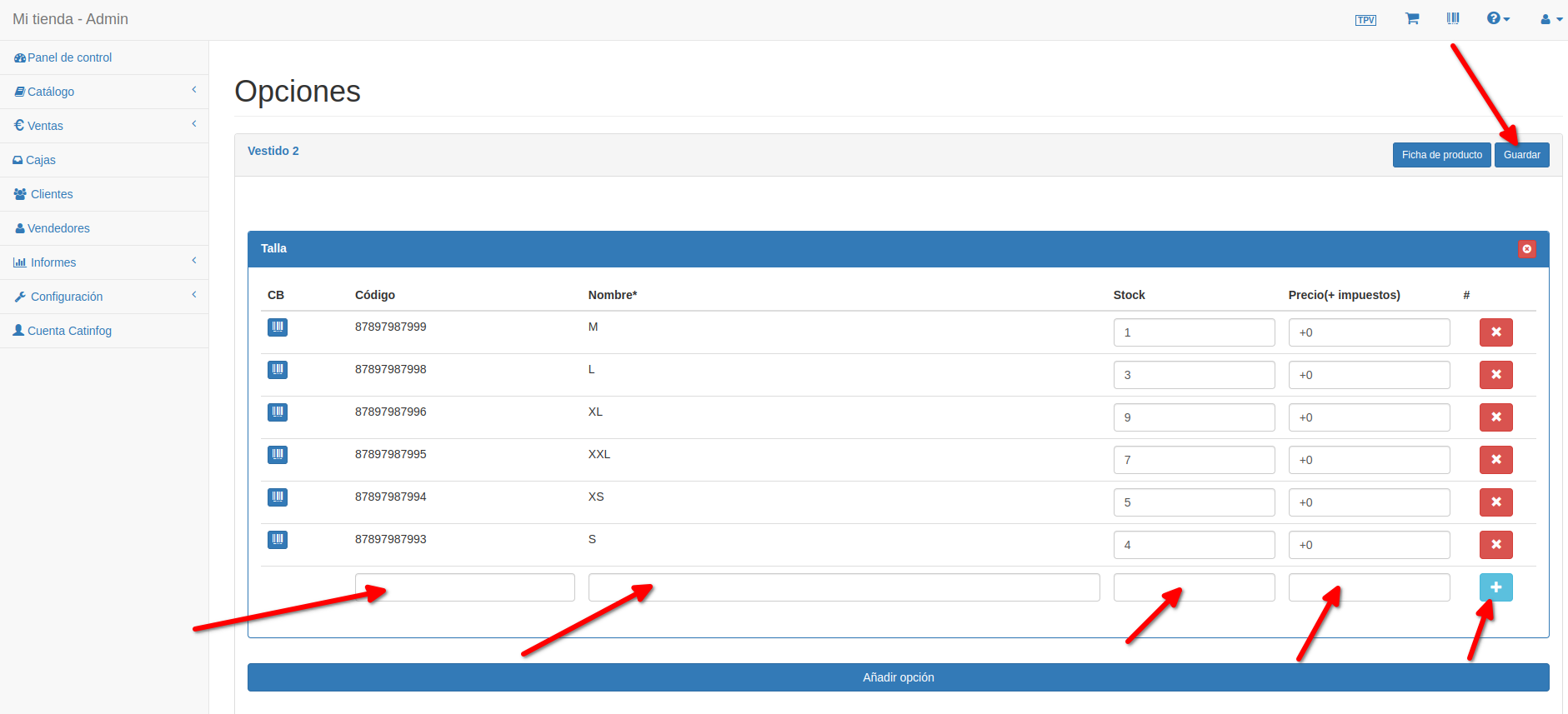
Once you’ve saved, you can go back to the product page by clicking Product page.