Results appear as you type. Use the arrow keys to move and Enter to open. Press the slash key to come back here.
How do I add a customer to a sale?
If a customer asks for an invoice, their details have to appear on the receipt or the A4 invoice.
There are two ways to add a customer to a sale: while you’re making it, and afterwards.
Adding a customer while making the sale
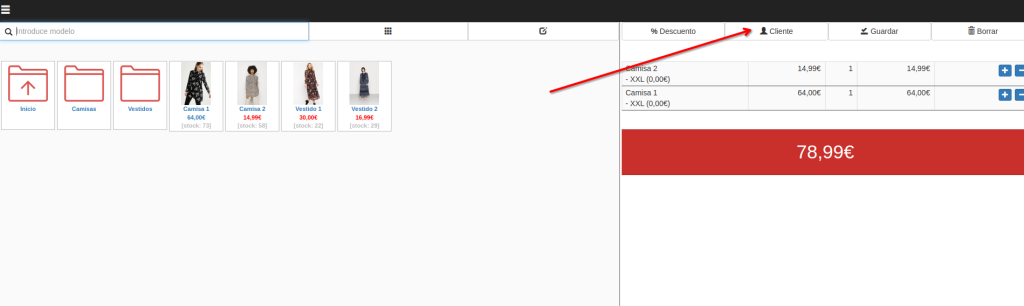
To add a customer during the sale, click the Customer button.
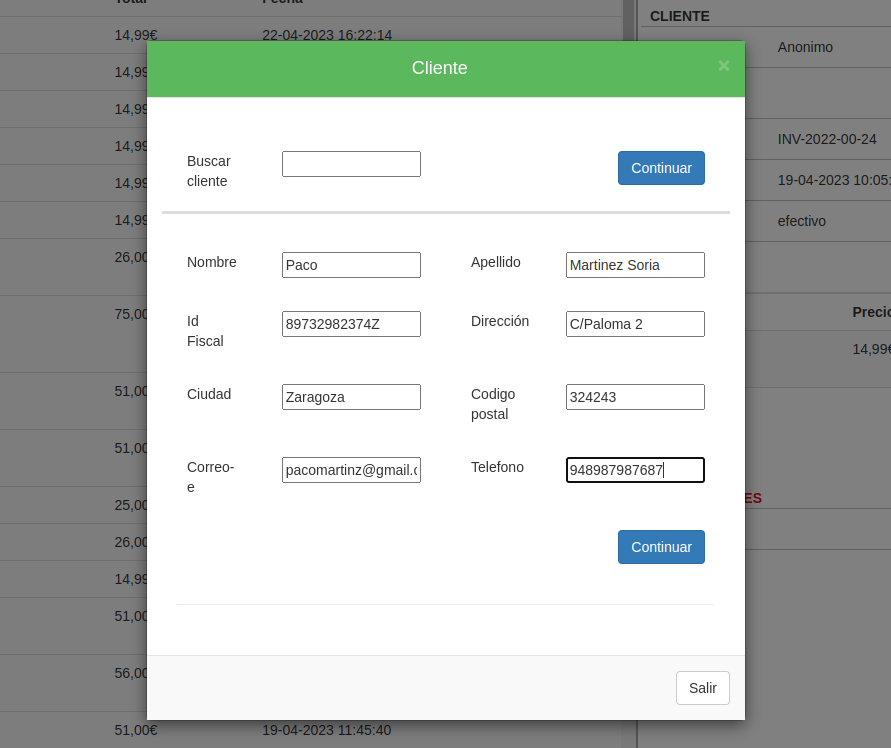
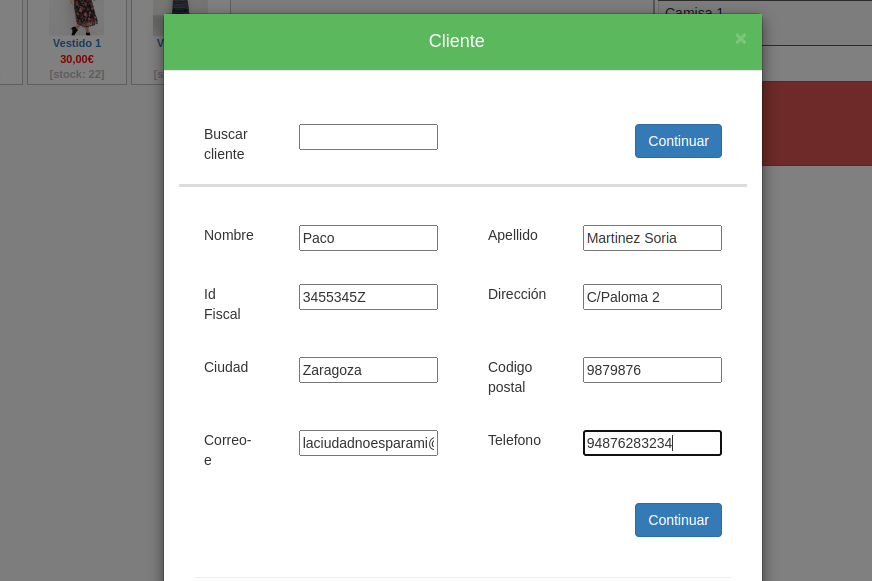
A window opens where the first field lets you search for an existing customer. Or you can fill in the fields below it with a new customer’s details and add them to the sale.
Adding a customer to a past sale
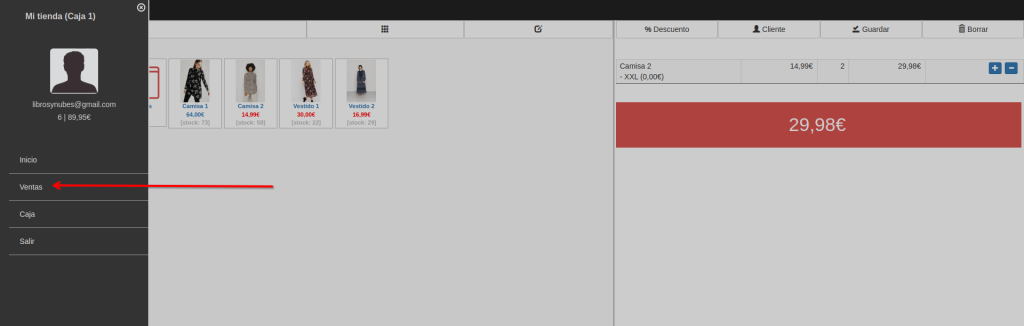
If you want to add a customer to a past sale, go to the menu and then Sales.
Find the sale by scanning the barcode on the receipt, or by typing the invoice number and pressing Enter. The sale loads on the right of the screen.
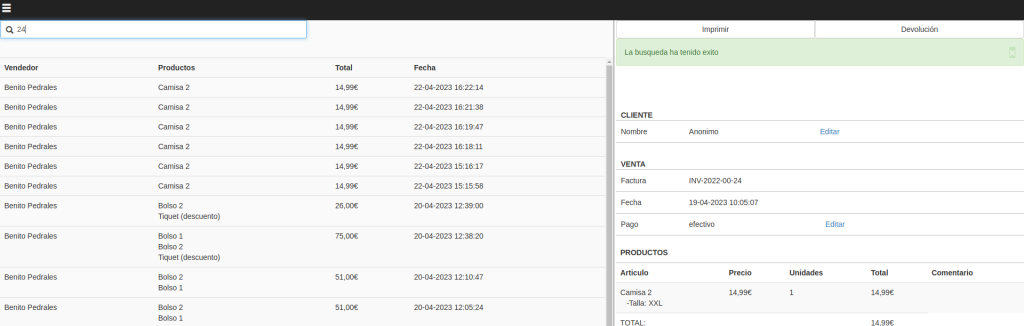
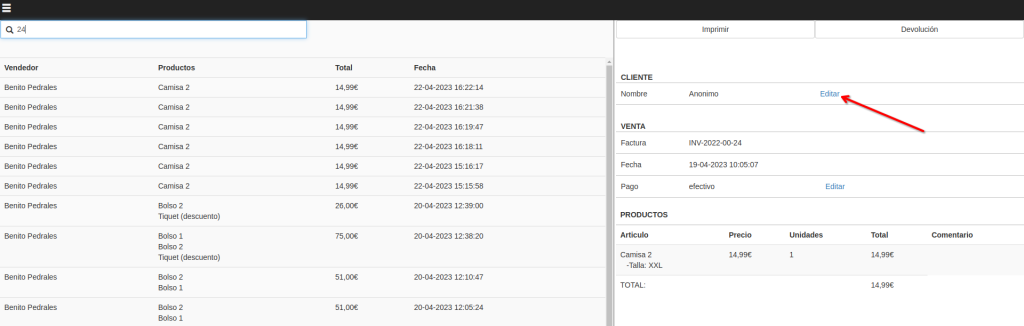
In the Customer field, click Edit.
A window opens where the first field lets you search for an existing customer. Or you can fill in the fields below it with a new customer’s details and add them to the sale.