Results appear as you type. Use the arrow keys to move and Enter to open. Press the slash key to come back here.
Fixing "my thermal printer prints badly"
Receipt printing problems on Windows: the usual causes
This video shows you how to sort out receipt printing problems on Windows.
This sorts out 99% of problems:
The four most common reasons a receipt won’t print
- The printer’s port isn’t mapped correctly. The fix is to go to the dashboard.
- QZ isn’t running. The fix:
- You haven’t got the right printer selected in your Catinfog POS dashboard.
- The USB cable, the printer or your computer’s USB ports are faulty.
When all of that fails, it is probably the print queue
If you’ve been through the four usual causes and it still won’t respond (sadly this is getting more common on Windows), the print queue may be stuck on an error caused by a corrupted file. Here’s the fix:
- Presiona
Win + R, escribeservices.mscy presiona Enter. - Find the service called Print Spooler.
- Right-click it and choose Stop.
- Then go to C:\Windows\System32\spool\PRINTERS and delete whatever files you find in there.
- Go back to Services, right-click Print Spooler and choose Start.
And there you go — the print queue is working again.
Receipt printing problems on Linux
This video shows you how to sort out receipt printing problems on Linux.
Unusual printing faults
1. The printer pauses (on Mac and Linux)
Síntomas
QZ is running, the printer is properly installed, and receipts have been printing all day. Then at some point you go to print and nothing happens.
Go into CUPS (http://localhost:631) and click Printers. There, your printer’s status says it’s paused.http://localhost:631
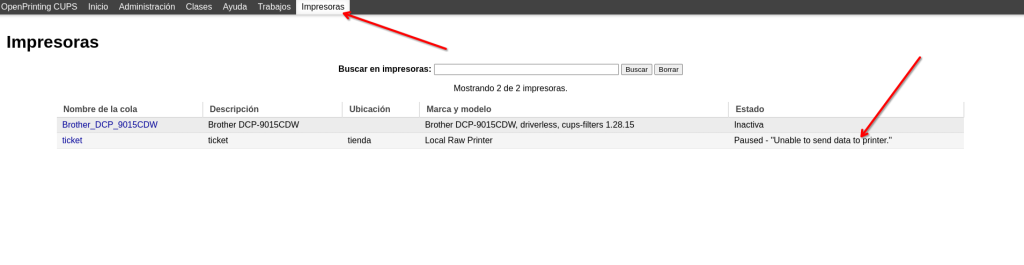
Solución
The fix is to stop CUPS pausing the print queue every time something happens — running out of paper, or anything else. To do that you need to edit the CUPS configuration by opening a terminal and running: sudo nano /etc/cups/printers.conf
It will ask for your password and for you to press Enter.
You’ll see the CUPS configuration. Near the end it says “ErrorPolicy stop-printer”. Change it to “ErrorPolicy retry-job”.
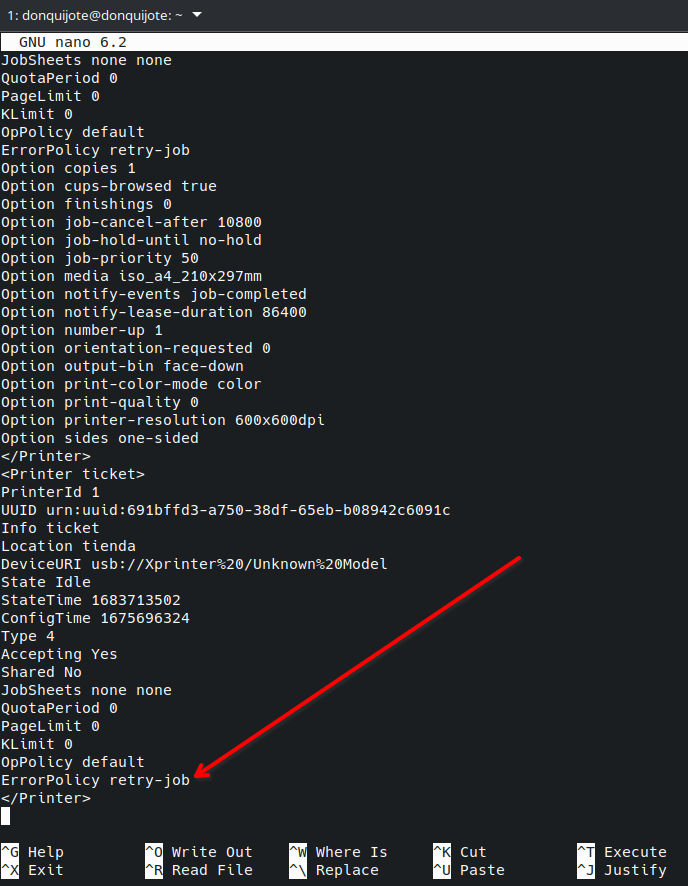
Save the file, usually with Ctrl + X.
Ahora solo debes reiniciar Cups.
On Mac: launchctl stop org.cups.cupsd && launchctl start org.cups.cupsd
On Ubuntu Linux: sudo service cups start
2. Fixing the CUPS error “Unable to get list of printer drivers”
We’ve run into this error on some Linux distributions when adding a new printer in CUPS.
The fix is very simple. Run the following command in your terminal:
sudo mkdir /usr/lib/cups/disabled
sudo mv /usr/lib/cups/driver/* /usr/lib/cups/disabled/
Now try installing your printer again. You’ll see the error has gone.