Results appear as you type. Use the arrow keys to move and Enter to open. Press the slash key to come back here.
How to import products from a CSV
Catinfog lets you import products in bulk from a text file in CSV format.
You can open a CSV file in LibreOffice, Google Sheets or Microsoft Excel to work with it more comfortably. We’d recommend LibreOffice.
Our tool lets you import products and offers in bulk, update stock, upload images, create categories and more.
Where is the import tool?
Go into your dashboard. In the left-hand menu, click Settings, then Import and export data, then Products.
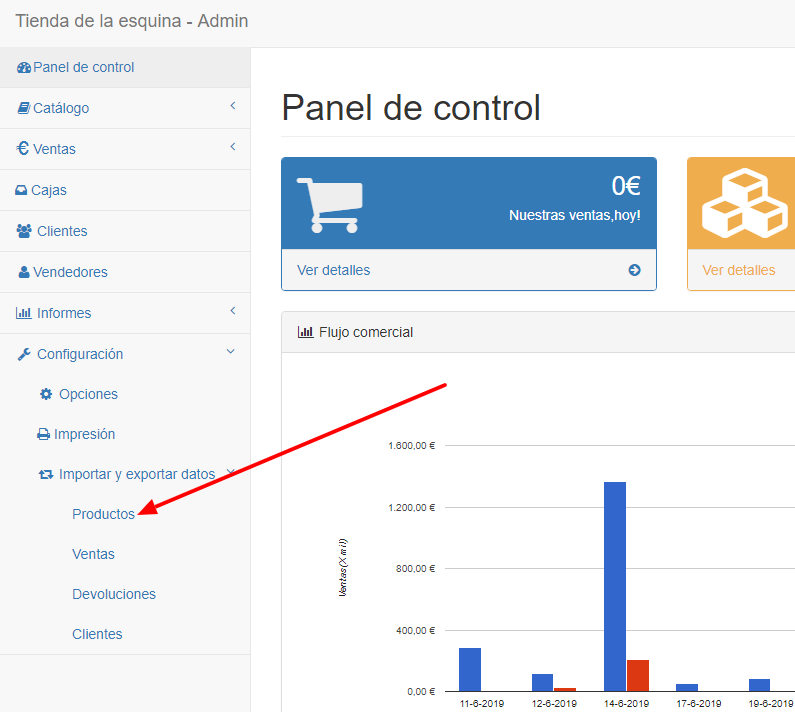
How do I import the CSV file and the product images?
Once you’re in the product import tool, you can import either the CSV file or the product images.Importing product images
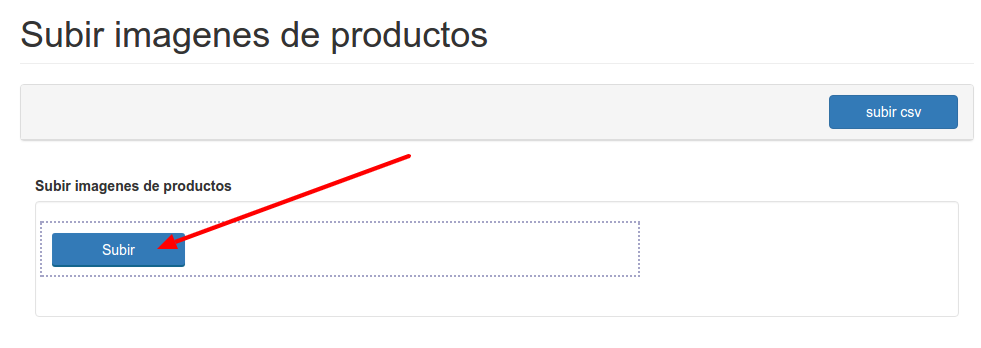
- Click the “Upload images” button.

- Now click upload and choose the product images on your computer.
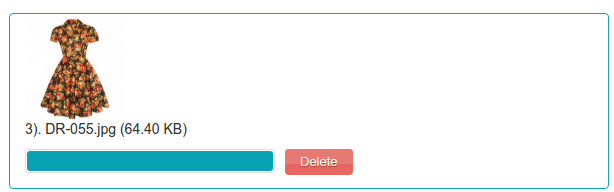
- Wait for the blue bar to fill on every image: that’s when the upload has finished.
- Finally, click “Upload CSV” to go back to the product import tool.

Importar productos
- Say whether your CSV separates values with commas (,) or semicolons (;).
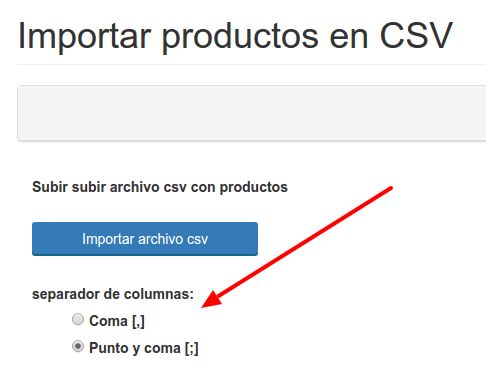
- Click “import CSV file” and choose the CSV file on your computer.

- Once the blue bar fills up, the file has uploaded and the data is being processed.
What does the CSV file have to look like for the import to work?
The CSV importer has a few rules that have to be followed for everything to work properly:- The “model” column is required. It’s the field everything else hangs off.
- Prices are entered without tax.
- You can put a product into several categories by separating them with :::. For example: Dresses:::Shoes
- You can put a product into subcategories by writing the full path with /// between parent and child. For example: Dresses///Long dresses
- You don’t need to create the categories before importing the CSV: any new ones are created from the file itself.
The columns in the CSV are:
- model The product’s barcode. It mustn’t be repeated on other products, and we’d recommend keeping it numeric.
- name The product’s name
- description You can write whatever you like here, HTML included.
- image Write the image’s filename — image1.jpg, for instance. You can give a product several images by separating them with :::, like this: image1.jpg:::image2.jpg
- impuesto
Write the name of the tax rate. In Spain these are:
- iva 21%
- iva 10%
- iva 4%
- price Enter the price with tax included.
- category Write the name of the category the product belongs in — Dresses, for instance. To put it in a subcategory, separate parent from child with ///, like this: Dresses///Red. To put it in several categories, separate them with :::, like this: Dresses///Red:::Offers
- total stock The product’s total stock, including the stock of all its variants if it has any.
- add stock Adds stock on top of what’s already recorded.
- status Used to hide a product in the online shop. 1 means active, 0 means inactive.
- option name The name of the variant type. “Sizes”, for instance
- option – value The variant’s values. “XS”, for instance
- option stock The variant’s stock.
- option price If a variant costs more or less than the general price, that goes here.
- option price sign Put + if the option price adds to the general price, or – if it subtracts.
- option barcode The variant’s barcode. It mustn’t be repeated on other variants or products.
- offer price The product’s reduced price.
- start date The date the offer begins.
- end date The date the offer ends.
- meta title The title of the product’s page.
- meta description The description of the product’s page.
- seo url The product’s URL.
- order Sets where the product sits in the online shop. Products default to 0. The lower the number, the earlier it appears: put -1 and it comes first, put 1 and it comes last.
- eliminar Si escribes un 1, eliminarás eese producto.